Most WordPress AI tools stop at the writing. They hand you a block of text, and you still copy it into the editor, fix the formatting, hunt for an image, pick a category, set the featured image, add the SEO title and hit Publish. The “AI” part took 10 seconds. The WordPress part took 20 minutes.
There’s a better split. Connect an AI assistant like Claude or ChatGPT straight to your site, and it can do the WordPress part too. You describe what you want in plain English, and the assistant writes the post, edits the pages, uploads the images, sorts the categories and schedules the lot, working inside your own WordPress with your own permissions.
This guide shows how to manage WordPress content with AI using GripMCP, a free WordPress AI plugin. You’ll see what you can hand over, the prompts that work best, and the guardrails that keep anything risky waiting for your OK.
The short version:
- Install the free GripMCP plugin and switch its endpoint on.
- Add your site to Claude or ChatGPT as a connector and approve the sign-in.
- Ask for what you need: a draft, an edit, a new image, a tidier menu.
- Deletes wait for your approval, and every edit can be undone from revisions.
Why copy and paste is the slow part of AI blogging
Ask anyone who writes blog posts with AI where the time goes, and it’s rarely the first draft. It’s the hand-off. A chatbot can’t see your site, so it doesn’t know your categories, your existing posts, your house style or which images you already have. Every answer has to be carried across by hand, and every small change (“make the intro shorter”, “swap that heading”) means another round trip between 2 browser tabs.
Content management is also more than new posts. It’s fixing a typo on a page from 2023, updating last year’s prices across 6 articles, approving comments, moving a page in the menu and replacing a broken image. That upkeep is exactly the kind of small, repetitive work AI is good at, but only if it can reach your site.
How AI can work inside WordPress
GripMCP turns your WordPress site into an MCP server. MCP (Model Context Protocol) is an open standard that lets AI assistants use outside tools safely. Once your site is connected, the assistant isn’t guessing from screenshots or asking you to paste things in. It reads and changes your content through WordPress itself, the same way the block editor does.
2 things make this different from handing over a password:
- It acts as a real WordPress user. Every request is checked against the role of whoever connected it. If that person is an Editor, the assistant can do what an Editor can do, and nothing more.
- It writes content, not code. The assistant can’t slip a script, an embedded frame or a hidden tracking snippet into a post. A change like that is refused with the reason, even for an administrator.
It works with self-hosted WordPress on any host, so you don’t need to move your site anywhere to use it.
What you can hand over to AI
Everything below works with the free plugin. Each section has examples of what you’d actually type.
Write and publish blog posts
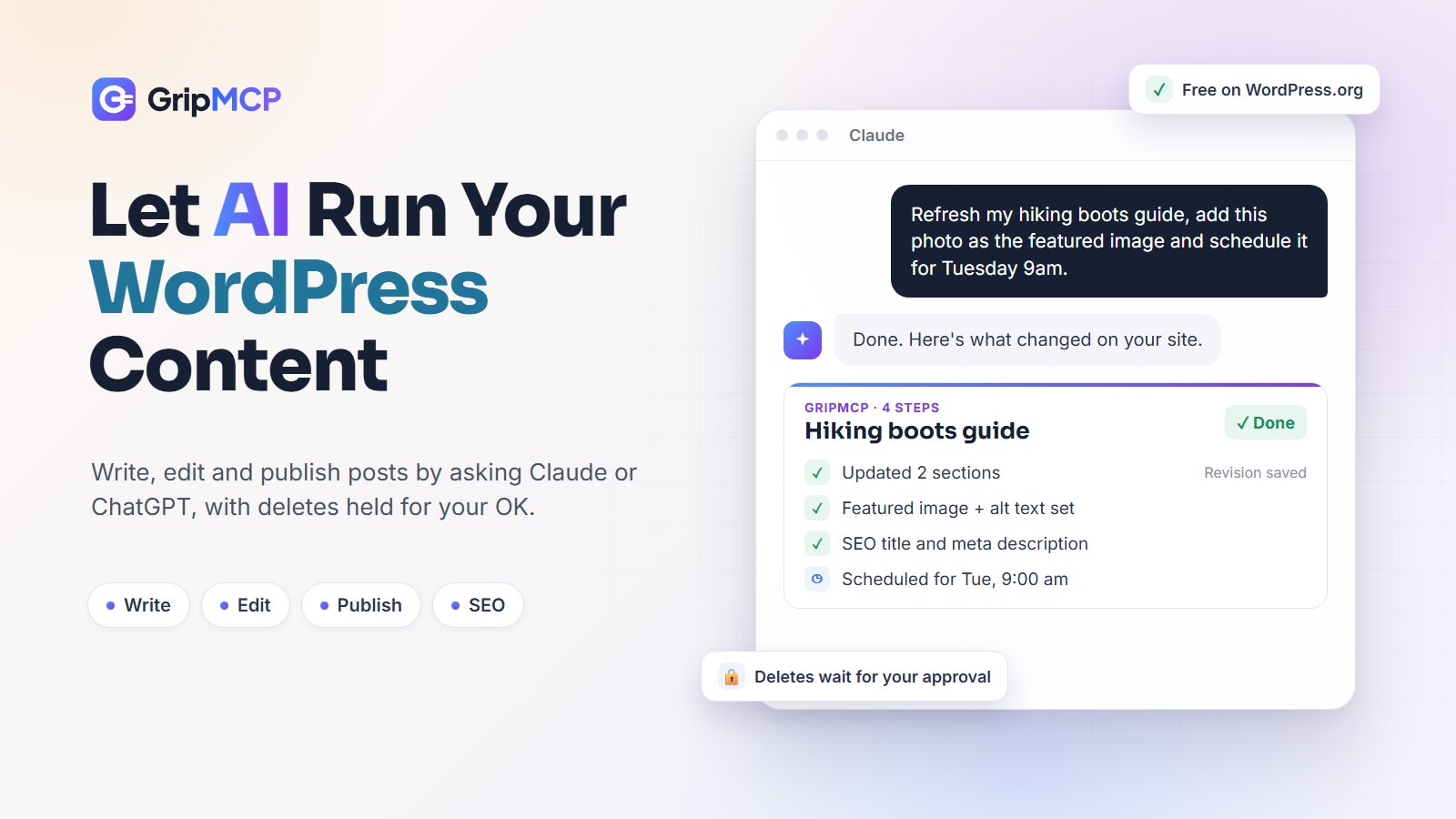
The assistant can create posts, pages and custom post types, with proper headings, lists and links in the block editor format. New posts are saved as drafts unless you ask for something else, so you always get to read before anything goes live. When you’re happy, it can publish straight away or schedule the post for a date and time you choose.
- “Draft a 1,200-word post on choosing hiking boots for beginners. Use H2 headings, a short FAQ at the end, and put it in the Gear category.”
- “Read my last 5 posts and write the next one in the same tone of voice.”
- “Schedule the boots post for Tuesday at 9am.”
Edit existing posts and pages
This is where most people save the most time. The assistant can search your content by keyword, open any post or page, and change just the part you mention while leaving the rest alone. It’s ideal for refreshing old articles, which is one of the most reliable ways to win back search traffic.
- “Find every post that still says 2025 pricing and update it to the new prices.”
- “Rewrite the intro of the About page so it’s half the length and less formal.”
- “Our support email changed. Replace the old address everywhere it appears in posts and pages.”
- “Add a ‘Last updated’ note and a new section on waterproofing to the boots guide.”
Upload images and set featured images
Images are usually the fiddliest part of publishing. The assistant can upload an image from a web address or from a picture you drop into the chat, place it inside a post, and set it as the featured image. In Claude you can even drag images onto an upload panel right in the conversation. If the chat can’t reach your site, it gives you a simple upload page instead.
- “Use this photo as the featured image for the boots post, with alt text that mentions beginner hiking boots.”
- “Put the trail map image after the second heading.”
Fill in SEO titles and meta descriptions
SEO plugins such as Yoast and Rank Math keep their titles and descriptions in custom fields, and the assistant can read and write those fields. That means it can write a meta description while it writes the post, or audit a batch of older posts and fill in the ones you left blank.
- “Write an SEO title under 60 characters and a meta description under 155 for each of my last 10 posts that doesn’t have one.”
- “Set the focus keyword for the boots post to ‘beginner hiking boots’.”
Organise categories, tags and menus
Over time, categories and tags drift. You end up with “Recipe”, “Recipes” and “recipes” all doing the same job. The assistant can list your terms with post counts, create new ones, move posts between them and tidy up the leftovers. It can manage your navigation menus as well.
- “Show me tags used on only one post, and suggest which ones to merge.”
- “Move every post tagged ‘quick dinner’ into the Weeknight Meals category.”
- “Add the new Pricing page to the main menu, right after Features.”
Moderate comments
Clearing the comment queue is a perfect job to hand over. The assistant can list pending comments, approve the real ones, and mark spam as spam.
- “Go through the pending comments. Approve genuine ones, mark obvious spam, and list anything you’re unsure about.”
Clear the cache and check the live page
Ever published a change and still seen the old version? The assistant can flush your cache, including Elementor and page-cache plugins like LiteSpeed Cache and WP Rocket, then load the page and confirm the update is actually showing.
wp-admin clicks vs 1 sentence: 5 everyday jobs
1Change a price that appears in 6 posts
✕Today in wp-admin · for every post
- Search your posts for the old price
- Open a post
- Find the price and change it
- Click Update
- Go back and repeat 5 more times
✓With AI · 1 message
“Change $49 to $59 in every post that mentions the starter plan.”
All 6 posts updated, each with a revision you can undo.
2Get a finished draft ready to publish
✕Today in wp-admin · 6 steps
- Upload the image
- Add alt text
- Set it as the featured image
- Pick a category
- Fill in the SEO title and description
- Set the publish date
✓With AI · 1 message
“Use this photo as the featured image, file it under Guides, write the meta description and schedule it for Friday at 8am.”
3Clear the comment queue
✕Today in wp-admin · 1 comment at a time
- Open Comments
- Read a comment
- Approve it or mark it as spam
- Repeat for every comment
✓With AI · 1 message
“Approve the genuine comments, mark the spam, and show me any you’re unsure about.”
4Fix a typo in the footer menu
✕Today in wp-admin · 5 steps
- Go to Appearance
- Open Menus
- Pick the footer menu
- Find the item and fix the label
- Click Save Menu
✓With AI · 1 message
“Rename ‘Contcat’ to ‘Contact’ in the footer menu.”
5Undo yesterday’s edit
✕Today in wp-admin · 3 steps
- Open the page’s revisions
- Compare versions to find the right one
- Click Restore
✓With AI · 1 message
“Put the About page back to how it was yesterday morning.”
How to set it up (about 5 minutes)
- Install GripMCP from the WordPress plugin directory and activate it. Your site needs WordPress 6.2 or later and HTTPS.
- Switch the endpoint on under GripMCP in your admin menu. It stays off until you do this.
- Copy your site’s address from the Setup tab. It’s your site’s address followed by
/mcp. - Add it to your assistant. In Claude, go to Settings → Connectors → Add custom connector, paste the address, sign in to WordPress and approve. There are no tokens or config files to deal with.
- Open a new chat and ask, “What can you do on my WordPress site?”
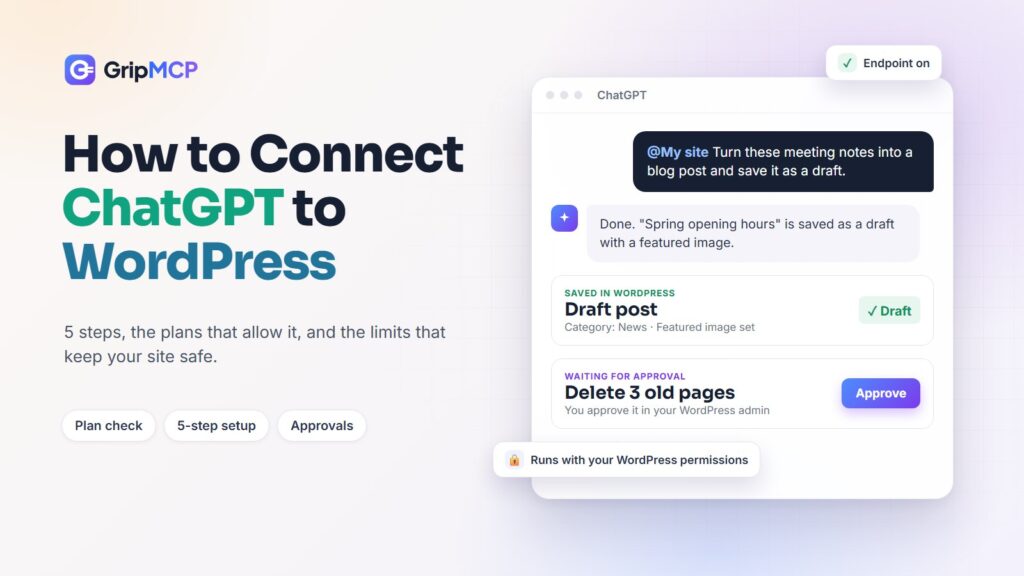
Using ChatGPT instead? The steps are almost the same, but not every ChatGPT plan supports custom connectors, so check yours first.
Is it safe to let AI edit your site?
It’s the right question to ask. Letting AI publish to a live site should come with brakes, and GripMCP turns them on by default:
- Deletes wait for you. Deleting a post, page, image, comment, category, tag or menu goes to an approval page in your own WordPress admin. The assistant can’t approve its own request.
- It warns you before something breaks. Before a delete reaches you, GripMCP checks what it would affect, like a page that’s your homepage or in a menu, or an image used as your logo or a featured image.
- Every edit can be undone. Changes go through WordPress revisions, so you can ask the assistant to restore an earlier version, or do it yourself in the editor.
- Your role is the limit. GripMCP never grants a permission the connected user doesn’t already have. For the tightest control, connect as an Author or Editor rather than an administrator.
- You can see what happened. An activity log records each request with the time, user and result.
Prompts that get the best results
- Ask for a draft first. “Save it as a draft and send me the link” gives you a chance to read before it goes live.
- Preview bulk changes. “List the posts you’d change and the new wording, and wait for my go-ahead” turns a big edit into something you can check in seconds.
- Point to your best work. “Match the style of my post on trail running shoes” beats a long description of your tone.
- Be specific about structure. Word count, headings, a FAQ, internal links to 2 related posts: say it once, up front.
- Finish with a summary. “Tell me exactly what you changed” gives you a neat list to double-check.
Bigger jobs that take several steps show up as a single live progress card in the chat, so you can watch each step happen and see the outcome at the end.
Frequently asked questions
Can ChatGPT post to WordPress directly?
Yes, once your site is connected through an MCP plugin like GripMCP. ChatGPT can then create drafts, edit posts and publish them on your self-hosted site. Claude works the same way and connects in about a minute.
Is GripMCP free?
Yes. The free plugin covers everyday content management: posts, pages, media, categories, tags, menus, comments, custom fields, revisions and site health. Paid plans add tools for developers, agencies and stores, like plugin and theme management, WooCommerce and page builders. The pricing page compares them side by side.
Will AI-written content hurt my SEO?
Google ranks content on how helpful it is, not on how it was produced. Use AI to speed up drafting and upkeep, then add what only you know: your own experience, examples and opinions. Refreshing old posts with current facts is one of the easiest SEO wins, and it’s a job AI handles well.
Can it edit pages built with Elementor?
The free plugin edits standard block editor and classic content, and it can clear Elementor’s cache. Editing Elementor, Divi and WPBakery layouts is part of the paid Operator plan.
Can my writers use it too?
Yes. Administrators can always connect. You can let other roles, such as Editors or Authors, connect their own assistant under the Permissions tab, and each one is limited to what their role allows.
Spend your time on the writing that matters
You don’t have to hand everything over on day one. Start with the jobs you put off: the comment queue, the old posts that need refreshing, the meta descriptions you never filled in. Once you trust how the assistant works, let it take on drafting and publishing too. Anything that deletes will still wait for you.
Get GripMCP free on WordPress.org, read the docs for setup details, or see what the paid plans add.

Written by
Shalini T.
Part of the team behind GripMCP, the plugin that lets Claude and other AI assistants work on your WordPress site with your own permissions.