Running a WooCommerce store is mostly small jobs. A customer emails about an order, so you go and search for it. A supplier puts their prices up, so you open a dozen product screens one by one. It’s Monday, so you open Analytics and try to remember which date range you picked last week.
None of it is hard. It just eats the day.
Connect an AI assistant to your store and most of those jobs shrink to a single sentence. You type “Find Priya’s order from last Thursday and tell me where it’s at,” and a few seconds later you have the answer, taken from your own WooCommerce data. This guide shows you how to manage WooCommerce with AI using GripMCP and Claude, which jobs you can safely hand over, and how to keep refunds and deletes firmly in your hands.
The short version:
- Install GripMCP and connect Claude to your WordPress site.
- Move to the Operator plan, which includes the WooCommerce tools.
- Reconnect so Claude loads the store tools.
- Leave “Destructive actions” on Ask me first so refunds wait for you.
- Start with questions, then hand over the changes.
What “managing WooCommerce with AI” really means
People mean 2 very different things when they talk about AI in WooCommerce. One is a chatbot on your storefront that answers shoppers. This guide is about the other kind: an assistant that works for you, behind the counter.
GripMCP is a WordPress plugin that turns your site into an MCP server. MCP (Model Context Protocol) is an open standard that lets an AI assistant use outside tools. Once your store is connected, Claude can look up an order, change a price or total up last month’s sales by working through WooCommerce itself. It isn’t reading screenshots of your admin or guessing at numbers. Because the work goes through WooCommerce, stock levels and customer emails behave just as they do when you click the buttons yourself.
There’s one more thing worth knowing up front. The assistant acts as the WordPress user who connected it. If that person’s role can’t issue refunds, neither can the assistant.
What you’ll need
- A WordPress site with WooCommerce active, running WordPress 6.2 or later and PHP 7.4 or later, served over HTTPS.
- An administrator account to set things up.
- A GripMCP Operator or Fleet licence. The free plugin covers everyday site care like posts, media and menus. The store tools start at Operator.
- Claude with access to custom connectors. Other MCP apps that support the standard sign-in flow connect the same way.
- Optional, but smart: a staging copy of your shop to practise on before you let anything touch live orders.
Step 1: Install GripMCP and connect Claude
If Claude is already connected to your site, skip ahead. If not, our guide on how to connect Claude to WordPress walks you through it. In short, you install the plugin, switch the endpoint on, copy your site’s address, add it to Claude as a custom connector and approve the sign-in on your own WordPress login page. There are no config files to edit, and most people are done in a few minutes.
Step 2: Move to the Operator plan
The WooCommerce tools live in the paid GripMCP plugin, on the Operator plan and above. Pick a plan on the pricing page, install the paid plugin that comes with your licence, and activate the licence on your site.
Operator also brings page-builder editing, developer tools and a full audit log you can filter and export. That log comes in handy once an assistant is touching orders. Each licence covers a set number of sites, so if you run more than one shop, pick a plan that covers all of them.
Step 3: Reconnect so the store tools load
GripMCP only offers your assistant the tools your site can actually use. The WooCommerce ones appear when WooCommerce is active and your plan includes them. If you upgraded, or switched WooCommerce on, after you first connected Claude, disconnect GripMCP under Settings → Connectors in Claude and connect it again. Then open a fresh chat.
A quick test: ask “What can you do in my WooCommerce store?” If the answer mentions orders, refunds, products, coupons and sales reports, you’re set. If it doesn’t, check that WooCommerce is ticked under GripMCP → Permissions → Choose tool groups, then reconnect.
Step 4: Check your permissions before money moves
In wp-admin, open GripMCP → Permissions and find Destructive actions. A new install sets it to Ask me first, and for a store that’s the setting you want. With it on, these all wait for your approval:
- Any refund, full or partial.
- Marking an order refunded, or cancelling one that may have been paid.
- Deleting or trashing a product.
- Giving someone shop manager or administrator access.
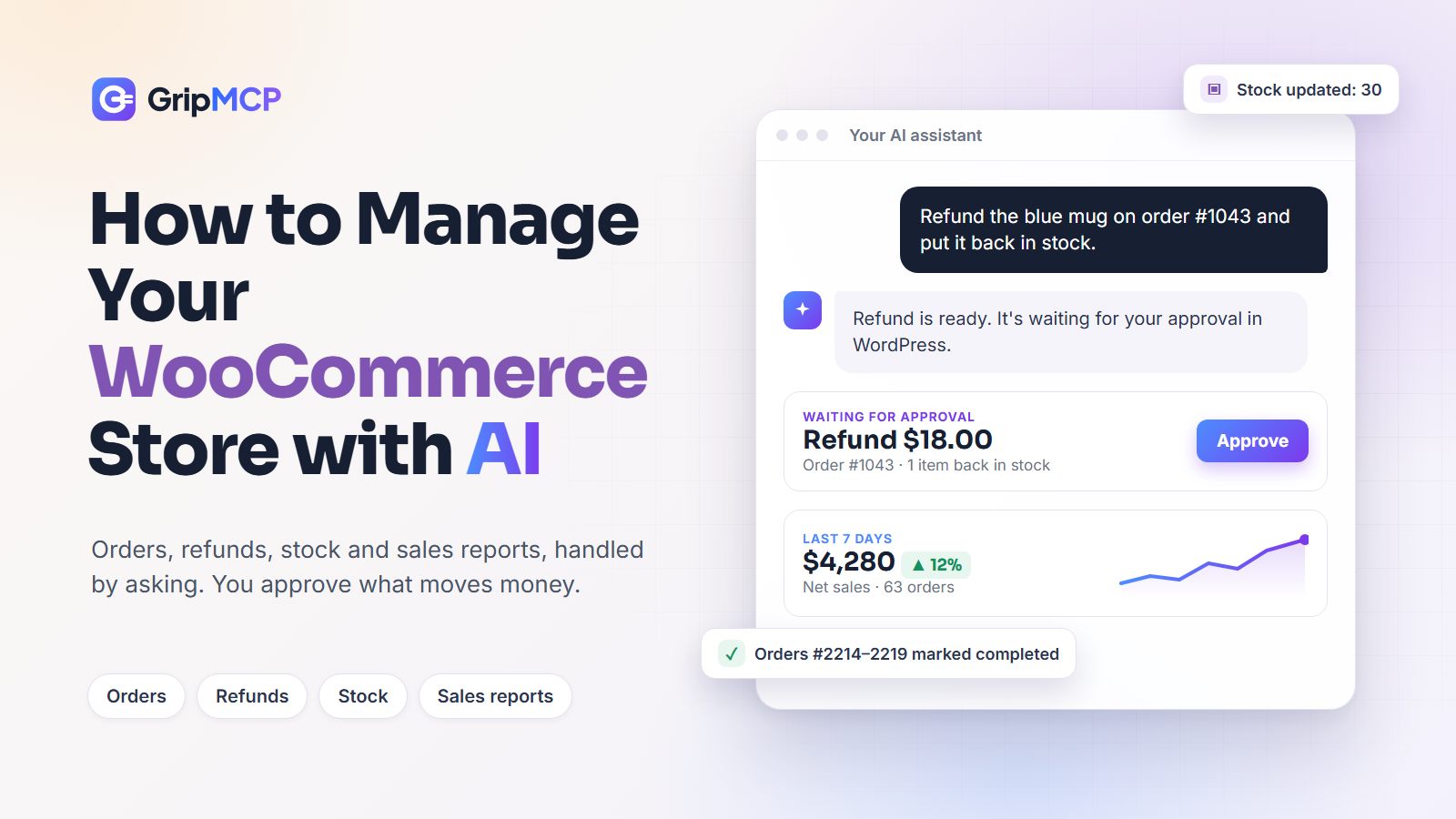
Each request lands on an approval page in your own WordPress admin, and it’s listed on the Approvals tab too. A refund request shows the amount and which items would go back in stock, so you know exactly what you’re agreeing to. The assistant has no way to approve its own request.
While you’re on this screen, look at Who can connect. Only administrators can connect at first. If your shop manager should have their own assistant, tick their role. They’ll still be limited to what a shop manager can do.
Step 5: Start with questions, not changes
Make your first few chats read-only. Ask for last week’s sales, the orders sitting on hold, or the products that are out of stock. You’ll get a feel for how the assistant reads your store, and you may spot a few things in your own setup worth tidying, like odd order statuses or products with no SKU, before you hand over a single change.
What you can hand over
The store tools are built around the jobs that fill a shop owner’s week. Here’s what each area covers, with the kind of thing you’d actually type.
Orders
Search orders by status, customer, keyword or date range, open any order in full (items, totals, addresses, payment details), and move it to a new status. It works on stores using WooCommerce’s High-Performance Order Storage as well as on older setups.
- “Which orders have been on hold for more than 3 days?”
- “Show me everything Daniel Reyes has ordered this year.”
- “Mark orders 2214 to 2219 as completed. They went out with this morning’s courier.”
One thing to keep in mind: changing an order’s status can send WooCommerce’s usual customer email, exactly as it would if you changed it yourself. That’s normally what you want, but don’t be surprised when “completed” triggers a “your order is complete” email.
Refunds
Refund a whole order or just part of it. You can name specific items so their price is refunded and the units go back into stock, or refund an amount on its own, say for a late delivery, without touching stock.
- “Refund the large blue mug on order 1043 and put it back in stock.”
- “Give the customer on order 1051 $5 back for the late delivery.”
By default a refund is recorded in WooCommerce only, which is handy when you’ve already sent the money back some other way. If you want your payment provider to actually return the money, say so in your request. Either way, with Ask me first switched on, nothing happens until you approve it.
Products and stock
Find products by keyword, category, status, type, stock status or SKU. Update the regular price, sale price, stock quantity, stock status, SKU, descriptions, categories or publish status. You can also create new simple products, which are saved as drafts unless you ask for them to go live.
- “List everything in the Candles category that’s out of stock.”
- “Put all the winter scarves on sale at 20% off, rounded to the nearest .99.”
- “We just counted 48 of the oak serving boards. Update the stock.”
- “Write a short, friendly description for the new linen apron, price it at $34 and save it as a draft product.”
Coupons
Create discount codes as a percentage, a fixed amount off the cart or a fixed amount off a product. Add an expiry date, a usage limit or a minimum or maximum spend. You can also list your existing coupons with how often each one has been used.
- “Create a code THANKYOU15 for 15% off, valid until the end of the month, with a $40 minimum spend.”
- “Which coupons have never been used?”
Customers
Look up a registered customer by name or email to see their addresses, how many orders they’ve placed, their lifetime spend and their latest orders. Guest checkouts don’t appear in the customer list, but you can still find their orders by name or email.
- “Pull up sarah@example.com. Has she ordered since the summer, and what has she spent with us overall?”
- “Find the customer called Tom Hughes and show me his last 3 orders.”
Sales reports
Ask for today, the last 7 or 30 days, this month, or any date range you like. You get gross sales, coupons, refunds, net sales, tax, shipping, total sales, order count, average order value and your top products. The figures follow the same definitions WooCommerce Analytics uses, so they line up with what you see in wp-admin. If you sell in more than one currency, each one is reported separately rather than mixed together.
- “How did October compare with September, and which products made the difference?”
- “What’s my average order value over the last 30 days?”
A Monday morning, start to finish
Here’s how this plays out for a small candle shop. The owner opens Claude with a coffee and types:
“How did last week go? Anything I need to deal with?”
Claude runs the sales report, then checks the order list. It comes back with net sales for the week, the 3 best sellers, 2 orders stuck on hold since Friday and a note that the fig and cedar candle has sold out.
The owner replies: “Both on-hold orders are paid now, move them to processing. Set fig and cedar back to 30 in stock, the new batch arrived. And one of Friday’s customers said their candle arrived cracked, refund it.”
2 orders move to processing, the stock is updated, and the refund goes up for approval. The owner clicks through to the approval page, checks the amount and approves it. That whole round would have taken 20 minutes and 6 screens in wp-admin. Here it took about 2.
Keeping your store safe
Handing over a shop that takes real money deserves some caution. These are the guardrails that matter most for a store:
- Your role sets the limits. Every request is checked against the WordPress role of the person who connected. GripMCP never grants a capability that person doesn’t already have.
- Money waits for you. Refunds, paid-order cancellations and product deletes go to an approval page in your own admin when Destructive actions is set to Ask me first.
- Know what you’re approving. Before a request reaches you, GripMCP checks what it would affect and shows you the findings next to the request.
- A record of every call. The activity log records each request with the time, user and result. On Operator and Fleet, the full audit log keeps 90 days of history that you can filter and export to CSV.
- Access keys stay narrow. Tokens only work on the GripMCP endpoint, expire after 90 days unless you choose otherwise, and can be revoked at any time.
Tips for better results
- Use order numbers when you have them. “Order 1043” is faster and safer than “the order from that woman in Leeds.”
- Ask for a preview before bulk changes. “Show me the list of products and new prices first, and wait for my go-ahead” turns a big edit into something you can check.
- Spell out the rounding. A 15% price rise on $23 is $26.45. If you want $26.99, say so.
- Ask for a summary at the end. “Tell me exactly what you changed” gives you a neat list to cross-check against the activity log.
- Practise on staging first. Especially for refunds and status changes, which can email customers.
Frequently asked questions
Can the AI refund real money?
Only if you ask it to. By default a refund is recorded in WooCommerce without contacting your payment provider. Either way, with Destructive actions set to Ask me first, the refund waits for your approval before anything happens.
Will my customers know I’m using AI?
No. The assistant works in the back office, the way you do in wp-admin. Customers only see the result, like an order marked as shipped or a refund in their account, and the same emails WooCommerce always sends.
Can my shop manager use it?
Yes. Tick their role under Who can connect on the Permissions tab, and they can connect their own assistant. It can only do what a shop manager is allowed to do in WooCommerce.
Do I need the paid plan for WooCommerce?
Yes. The free plugin handles content, media, menus, comments, settings and site health. The WooCommerce tools are part of the Operator and Fleet plans. You can start with the free plugin, get comfortable, and upgrade when you’re ready to bring the store in.
Does it work with High-Performance Order Storage?
Yes. Order search and lookups work whether your store uses HPOS or the older order storage.
Get your weekday back
You don’t need to hand everything over on day one. Start with the questions you ask every week, like what sold, what’s stuck and what’s running low, then let the assistant take on the routine changes once you trust how it works. The jobs that move money will always wait for your OK.
Compare the plans to see what Operator includes, read the docs for setup details, or get in touch if you’d like help getting your store connected.

Written by
Shalini T.
Part of the team behind GripMCP, the plugin that lets Claude and other AI assistants work on your WordPress site with your own permissions.